
Set up Bizsec for your firm
From signing up to a colleague opening Bizsec and seeing exactly the companies you gave them.
About fifteen minutes, start to finish. By the end you have a workspace, your first client company in it, and a colleague who sees only the companies you give them.
This is for the firm's owner. If you are joining a firm that already uses Bizsec, do steps 1, 2 and 9.
Create your account
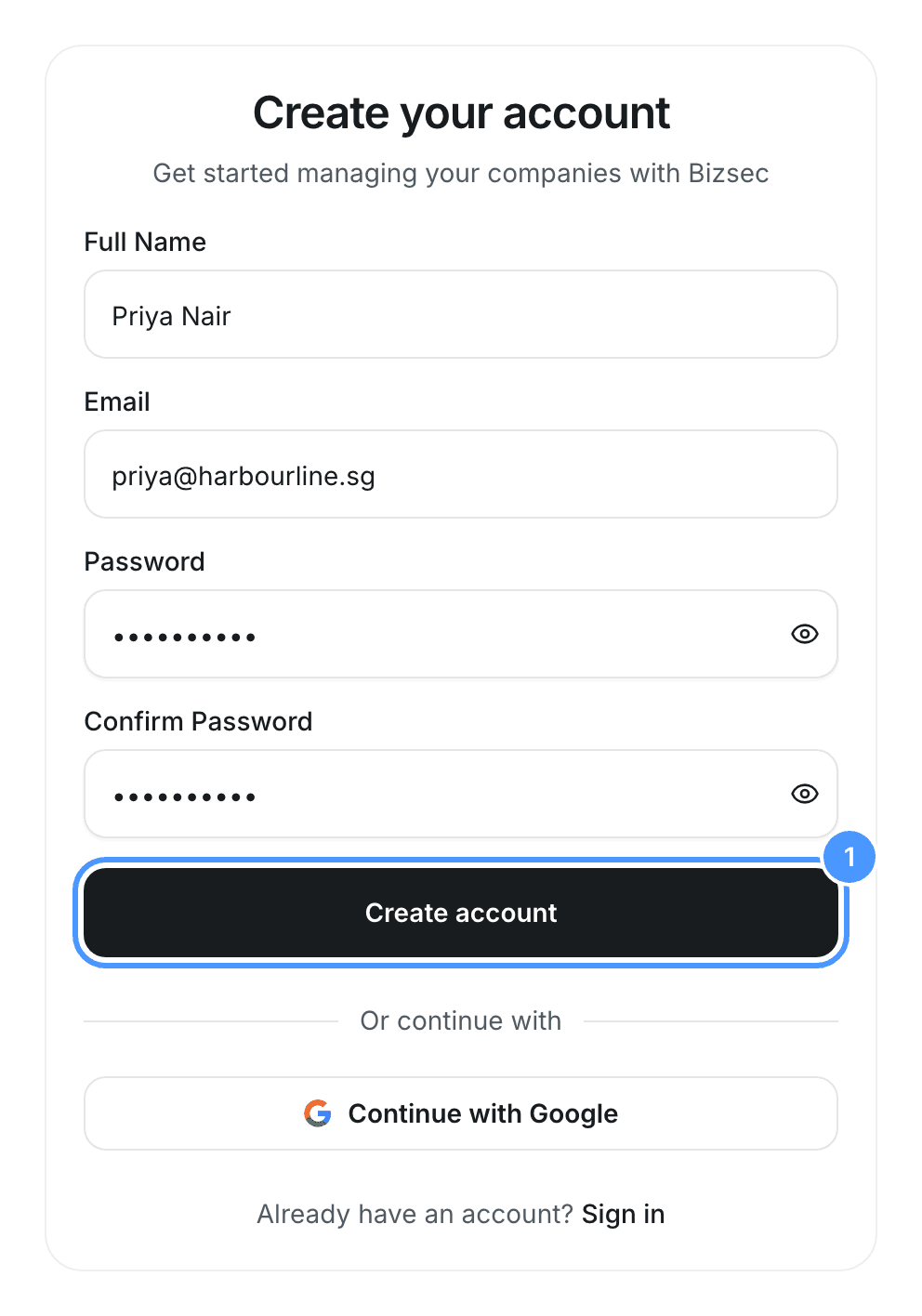
Open bizsec.io and choose Start now. Fill in your full name, the email address you want Bizsec to reach you on, and a password, then choose Create account.
Or choose Continue with Google. You skip the email step and land straight on the Create a Team page.
If Bizsec answers that your address is already registered, that has a specific meaning and a specific fix: see It says my email is already registered.
Confirm your email
Bizsec sends you an email titled Confirm Your Bizsec Email. Open it and choose Confirm email address.
The link works on any device and in any browser. You can open it on your phone having signed up on your laptop, and you can open it in a different browser from the one you signed up in. Nothing is lost either way.
Create your team
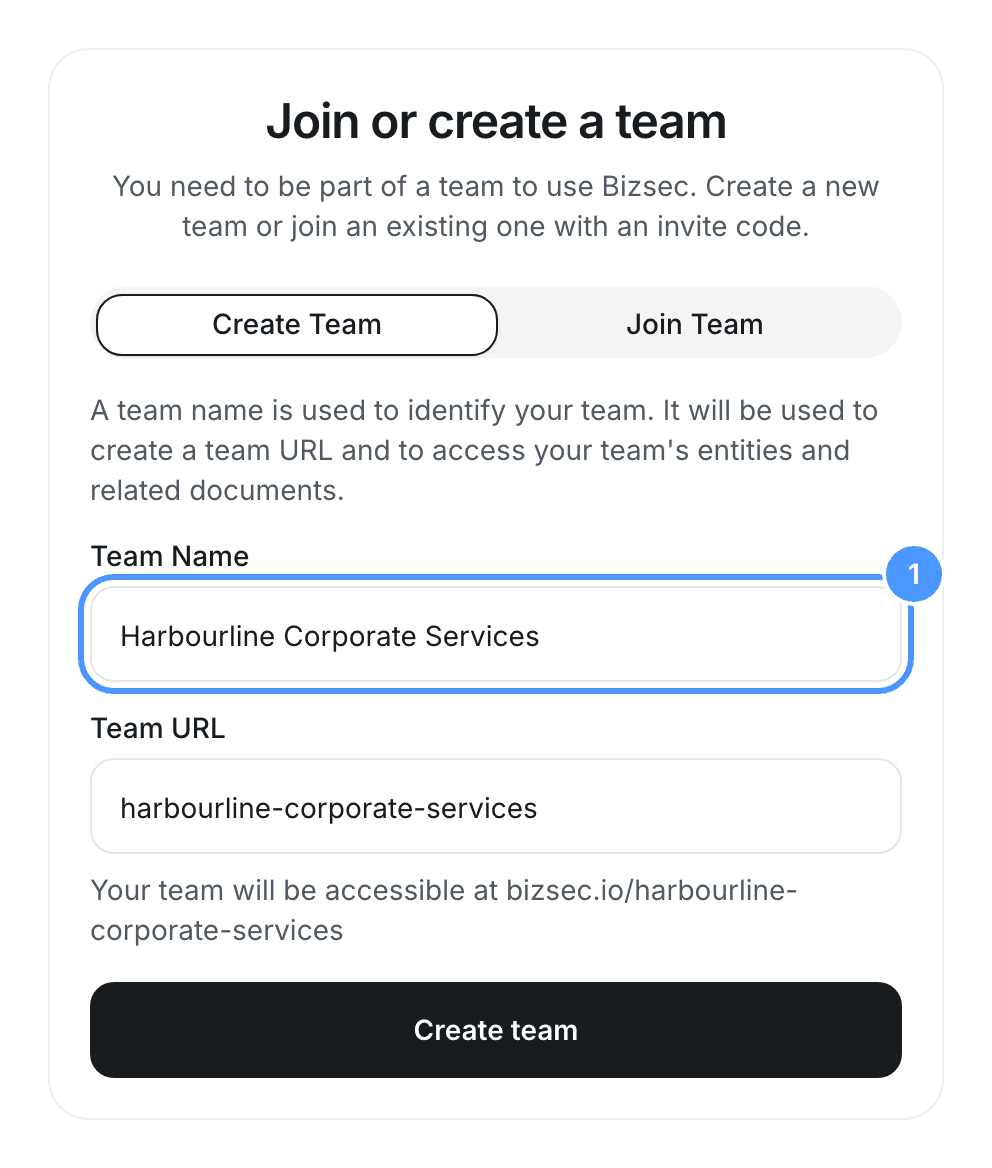
Signing in for the first time puts you on the Create a Team page. Put your firm's name in Team Name. The Team URL fills itself in from the name as you type, and you can change it before you continue. Choose Create team.
If you are a staff member
Your firm owner will give you an invite code instead. Skip to step 9.
Tell us about your firm
You will be asked a few questions about your firm. Everything except the AI-models question is required, and it takes a minute.
Activate your workspace
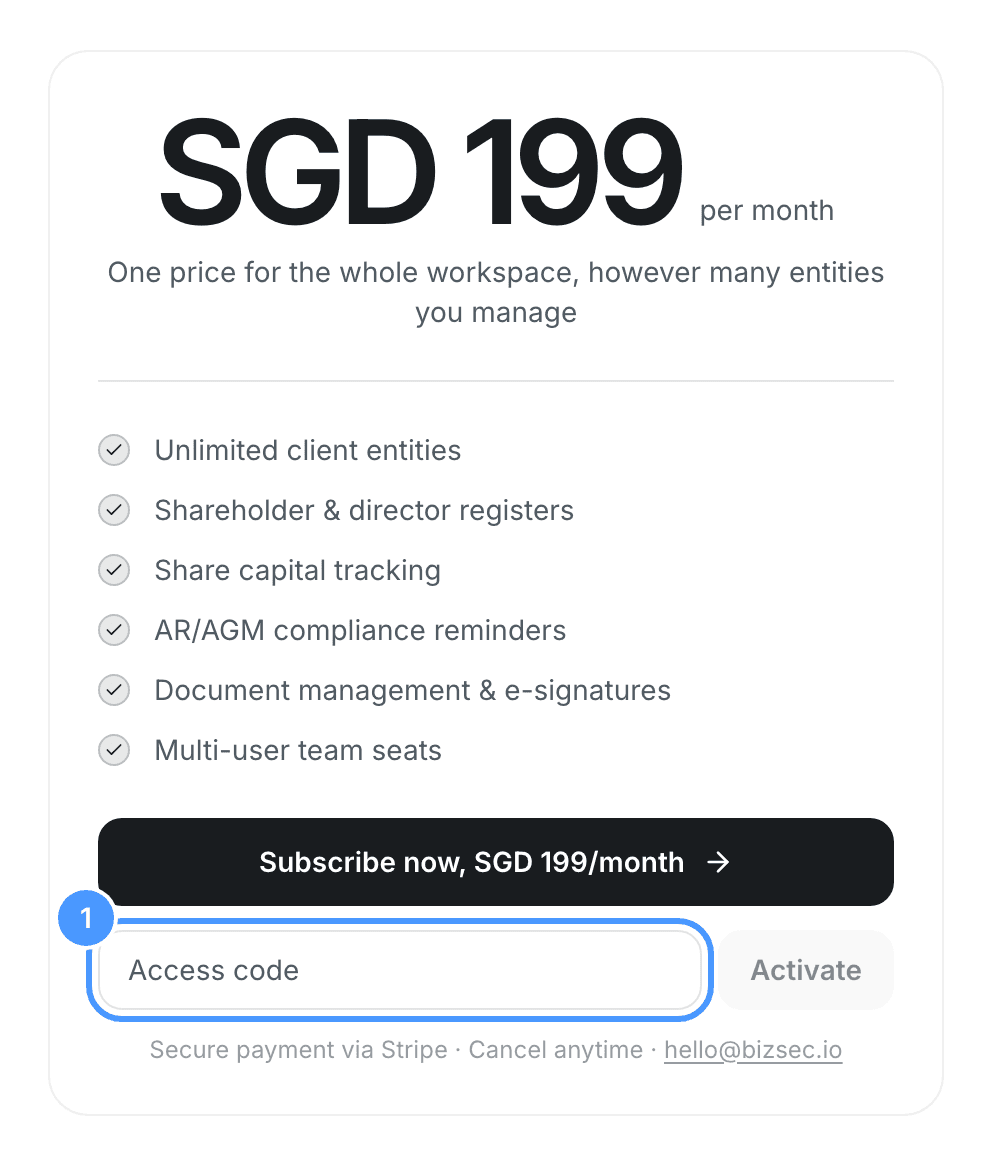
Choose Subscribe now and pay. Your workspace opens as soon as the payment goes through.
If you were given an access code at an event, choose Have an access code? instead, type the code and choose Activate.
If you are a staff member
If you see Waiting on your team owner, your owner has not done this step yet. Nothing is wrong at your end; the workspace opens for everyone at once.
Add your first company
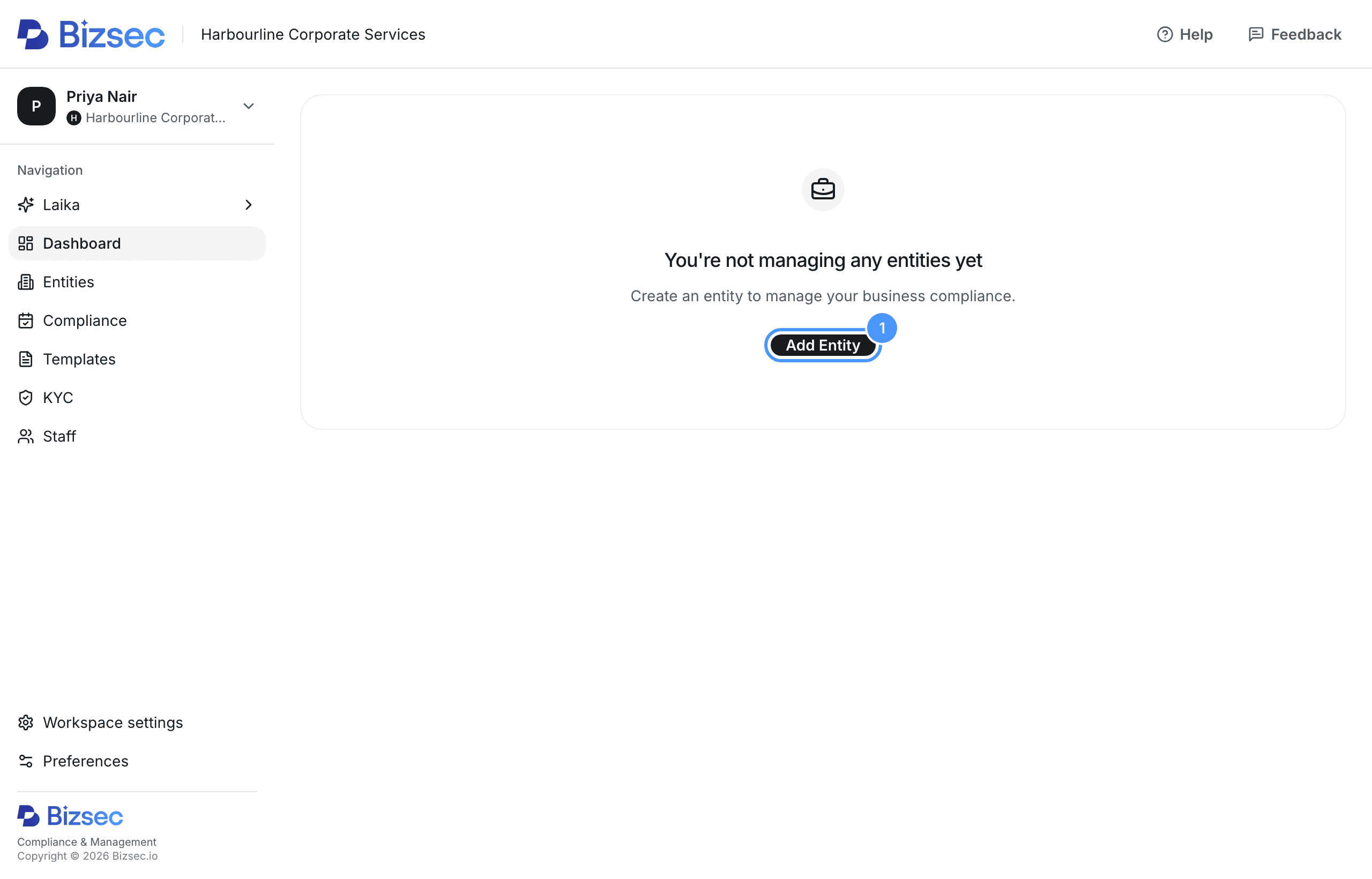
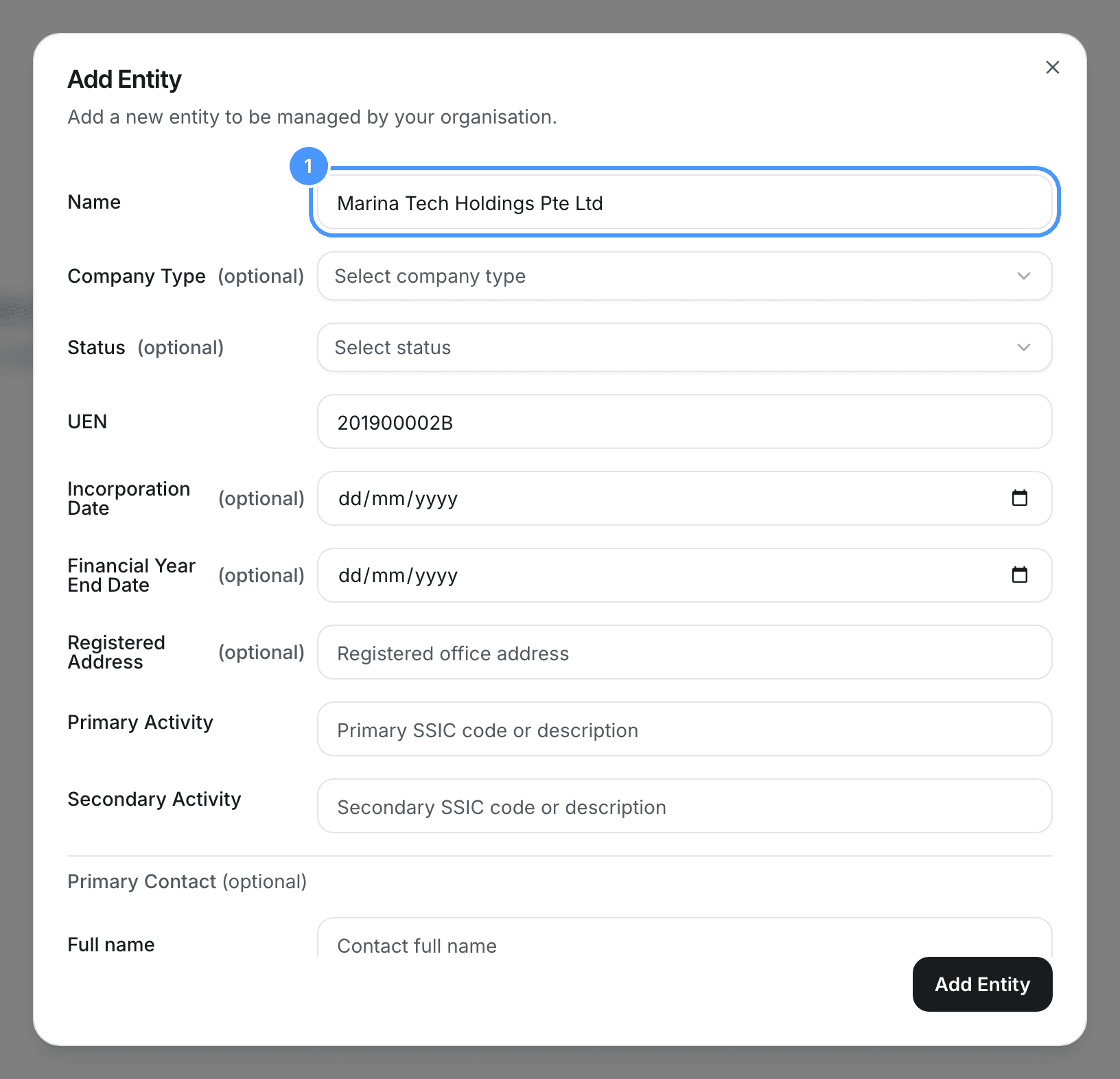
Your workspace is empty until you put a company in it. Choose Add Entity.
To bring a whole client book over at once rather than one at a time, use Import entities on the Entities page.
If you are a staff member
Only owners add companies. If you see Ask a team owner, that is why.
Fill in the company details
Name and UEN are the only two Bizsec needs. Everything else can wait, and you can fill it in later from the company's own page.
One field is worth doing now if you know it. The financial year end is what Bizsec derives your Annual Return, AGM and Tax Filing deadlines from, so a company without one has no deadlines to remind you about.
Choose Add Entity to save. The company's own page opens.
Find your invite code
Open Settings. Under Invite code is an eight-character code that lets somebody join your firm's workspace. Copy it and send it to your colleague however you like: a message, an email, read it out.
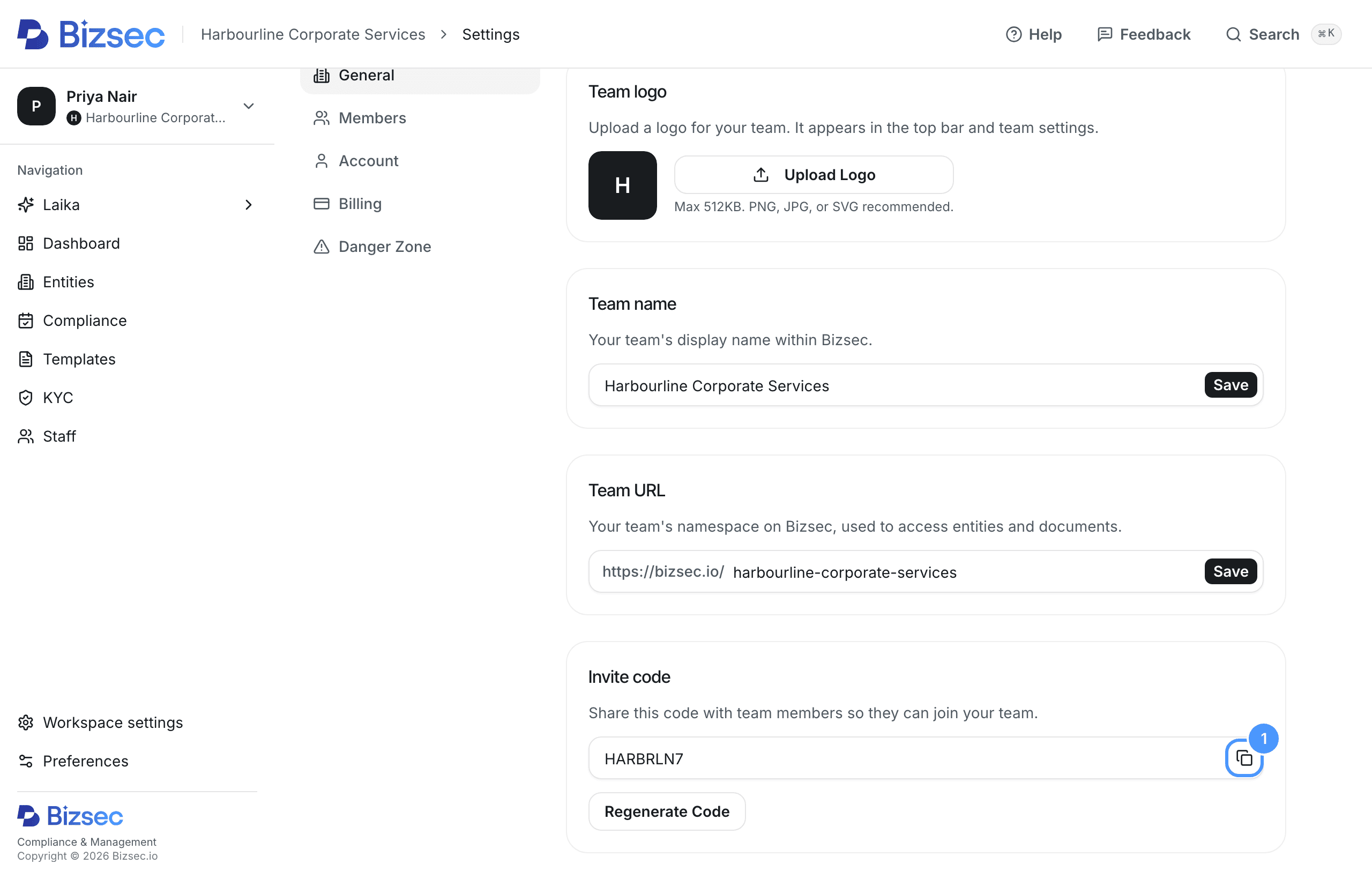
Anyone holding the code can join, so treat it the way you would treat a door code. Regenerate Code on the same screen replaces it and stops the old one working.
Your colleague joins
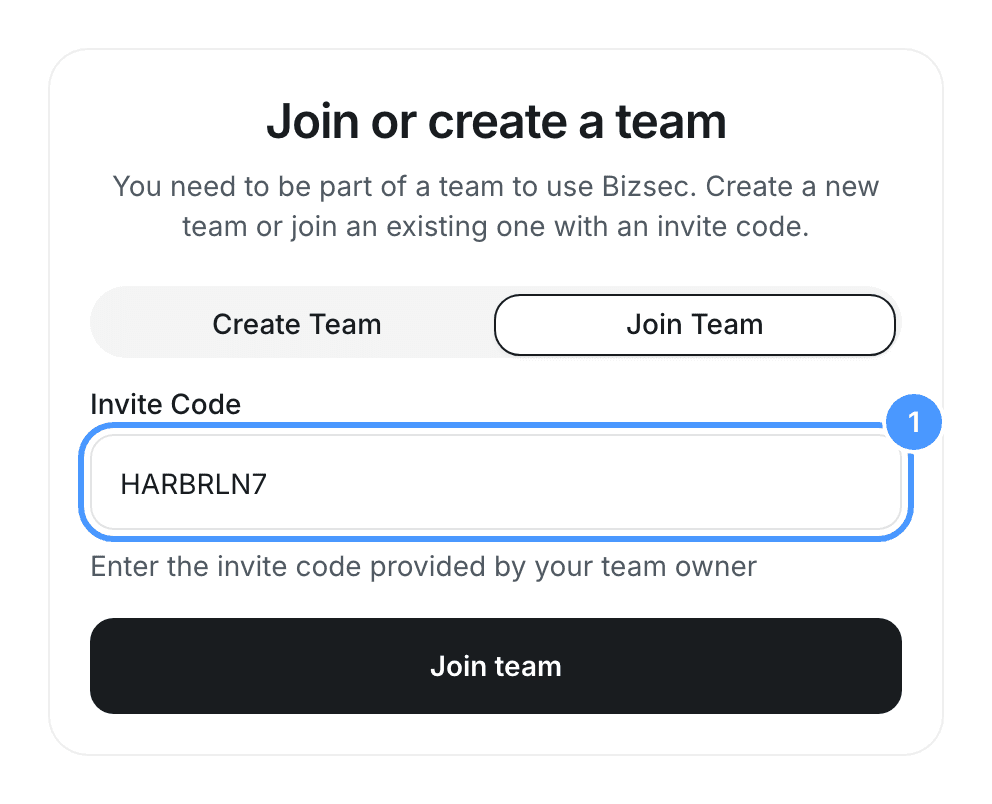
Your colleague creates their own account and confirms their email, exactly as in steps 1 and 2. Then, on the Create a Team page, they choose Join Team instead, enter the code you sent them and choose Join team.
If you are a staff member
This step is yours. Make your own account and confirm your email as in steps 1 and 2, then come back here with the code your owner sent you. You are not asked the questions in step 4.
Joining makes them a staff member rather than a second owner. What that changes, and the one thing a staff member can still do for themselves, is in My staff member cannot change anything.
Give your colleague their companies
A colleague who has just joined sees nothing yet. You choose what they see, one company at a time.
Open the Staff page, open the row menu at the end of your colleague's row, and choose Assign Entities. Tick the companies they should have, then choose Save.
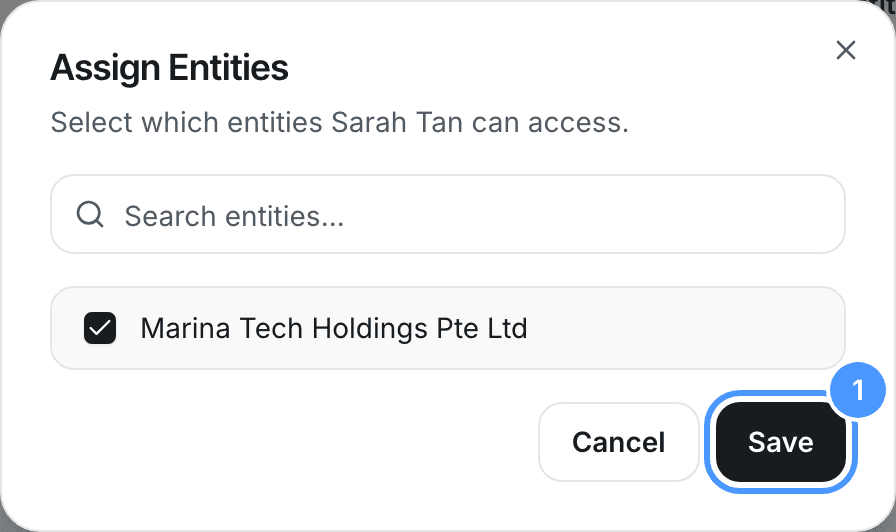
Come back here whenever the split changes. This is also the answer to My staff member cannot see all our companies, which is the question this screen raises most often.
What your colleague sees
Your colleague now sees only the companies you assigned. Everything else in your firm stays out of their view: not greyed out, not locked, simply not there.
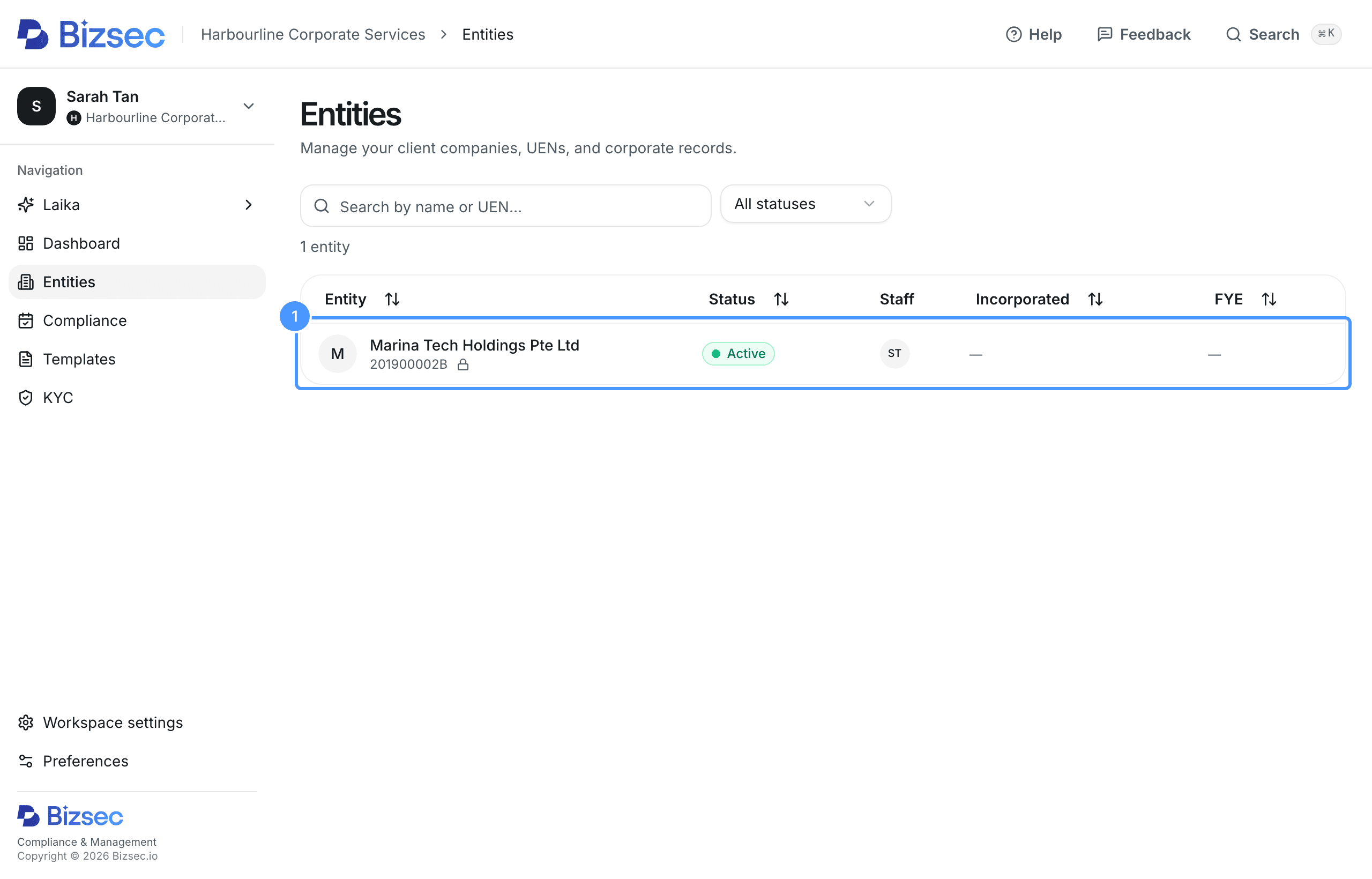
That is the setup done. The firm has a workspace, a company in it, and a colleague with exactly the access you gave them.
How is this guide?