
Import from a spreadsheet
Import your companies from an Excel or CSV file.
Import companies from a .csv, .xlsx or .xls file. The file needs one
column for the company name and one for the UEN. Any other columns are
optional.
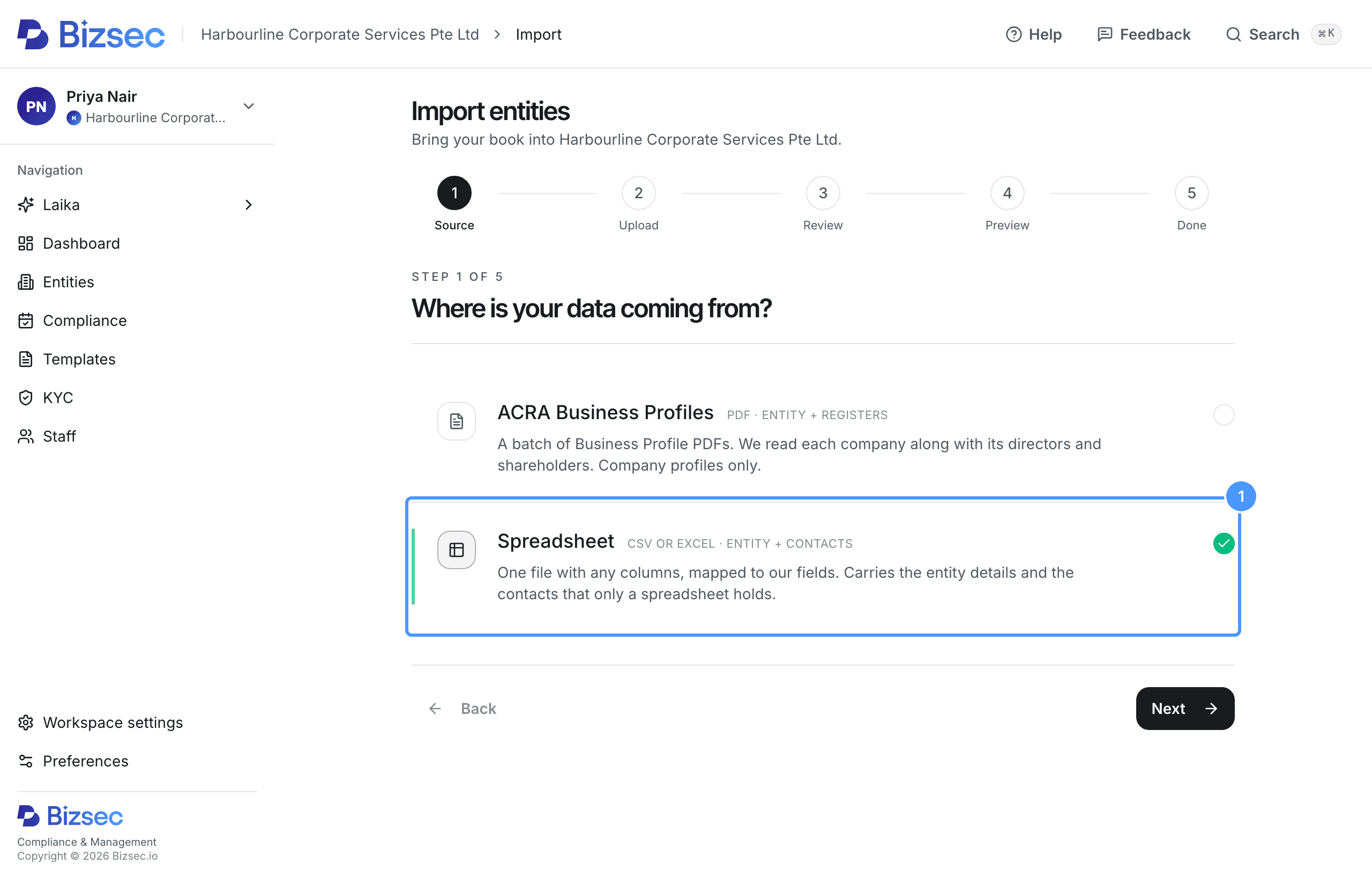
Choose Spreadsheet
On the Entities page, choose Import entities. Choose Spreadsheet, then Next.
If you are a staff member
Only owners can import companies. Ask your firm owner.
Upload your file
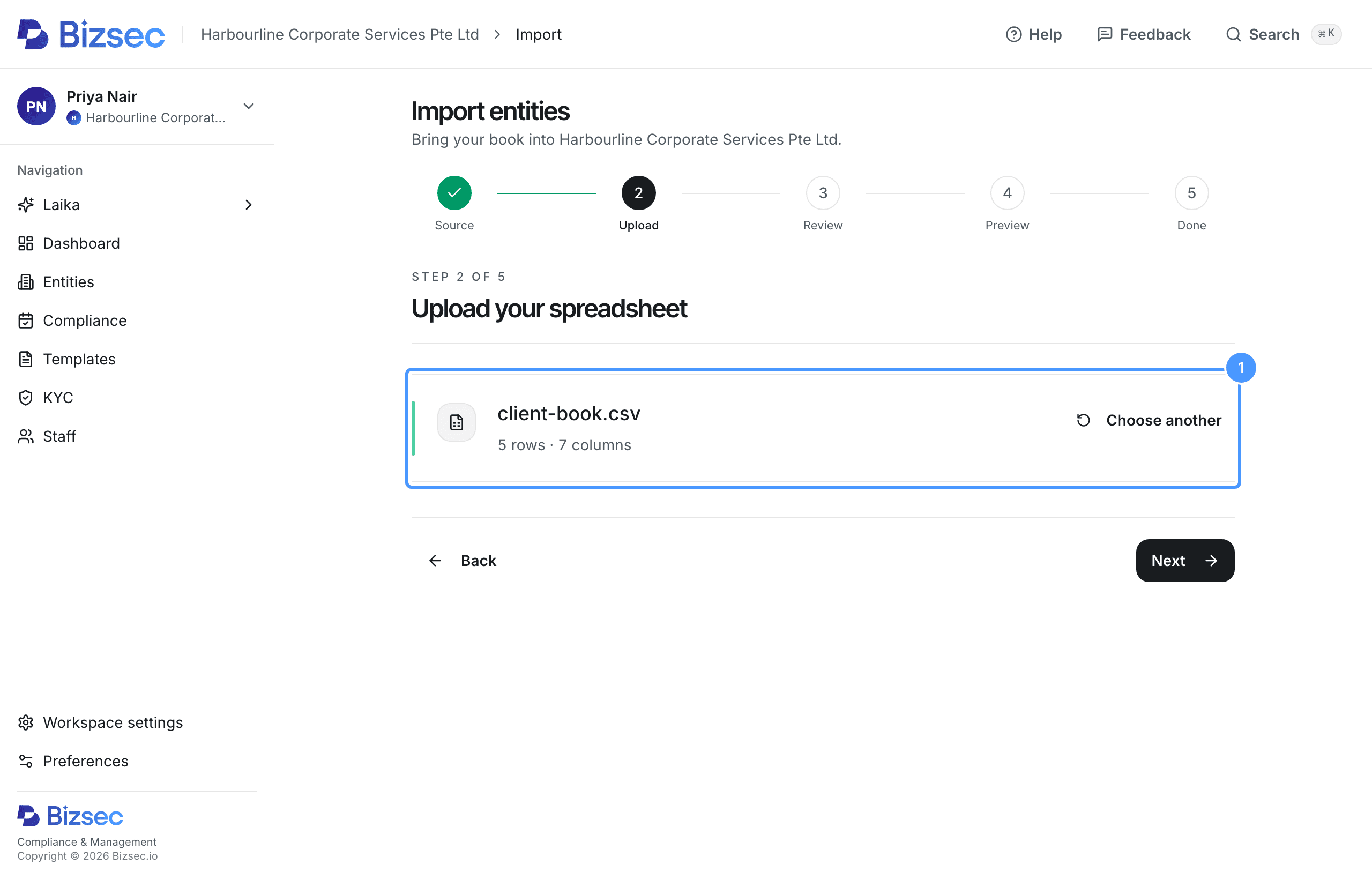
Drop your file on the page, or select Choose a file.
Bizsec reads up to 1,000 rows. In a workbook, it reads the first sheet only.
The file name appears with its number of rows and columns. Choose Next.
Map your columns
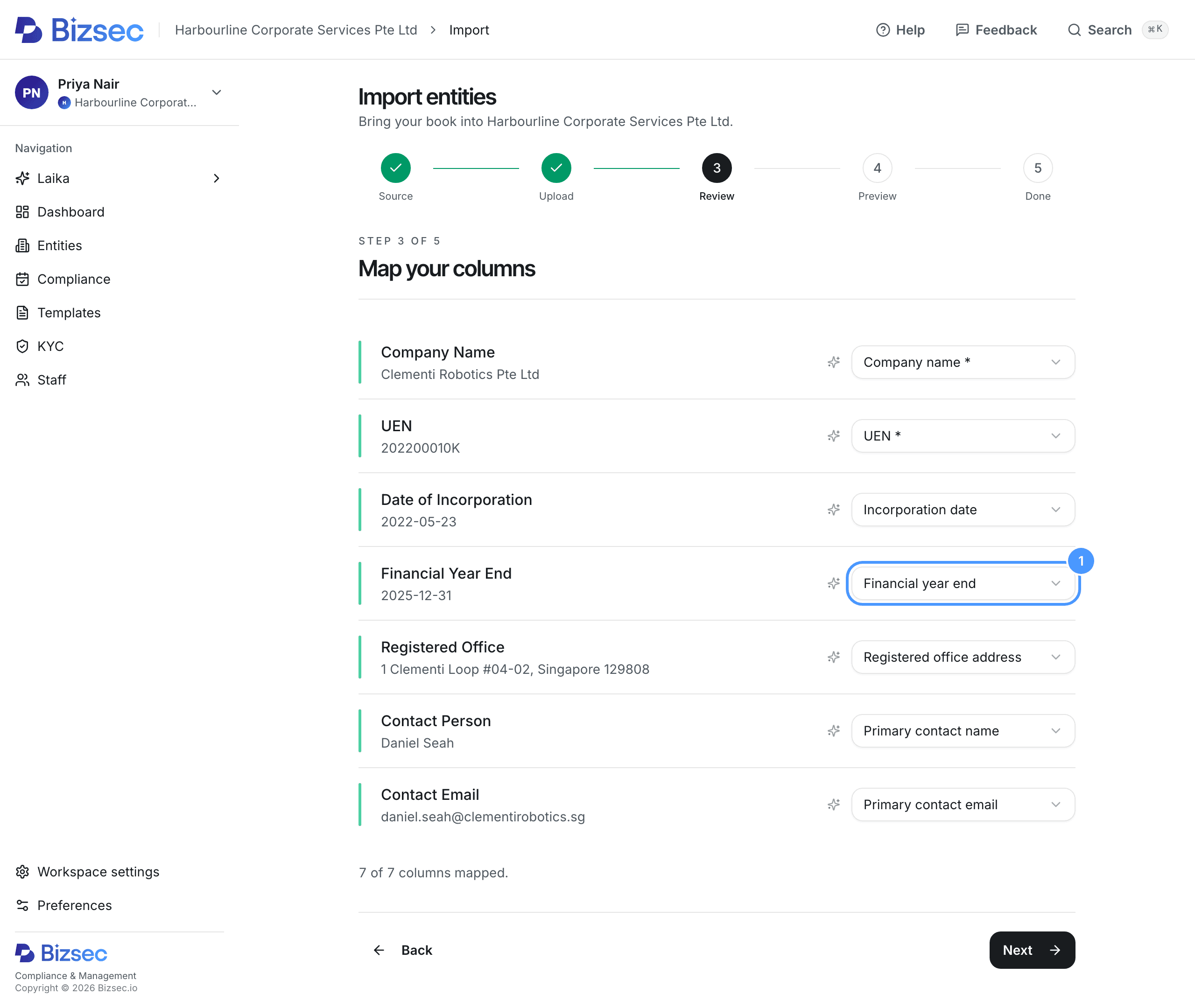
Each column in your file is matched to a Bizsec field. Check each match. To change one, pick another field. To skip a column, pick Ignore this column.
Company name and UEN are required.
The value under each header shows how Bizsec read it. Check that dates show the right day and month. If no date in a column has a day above 12, Bizsec cannot tell the day from the month, and flags those dates.
Choose Next.
Preview your import
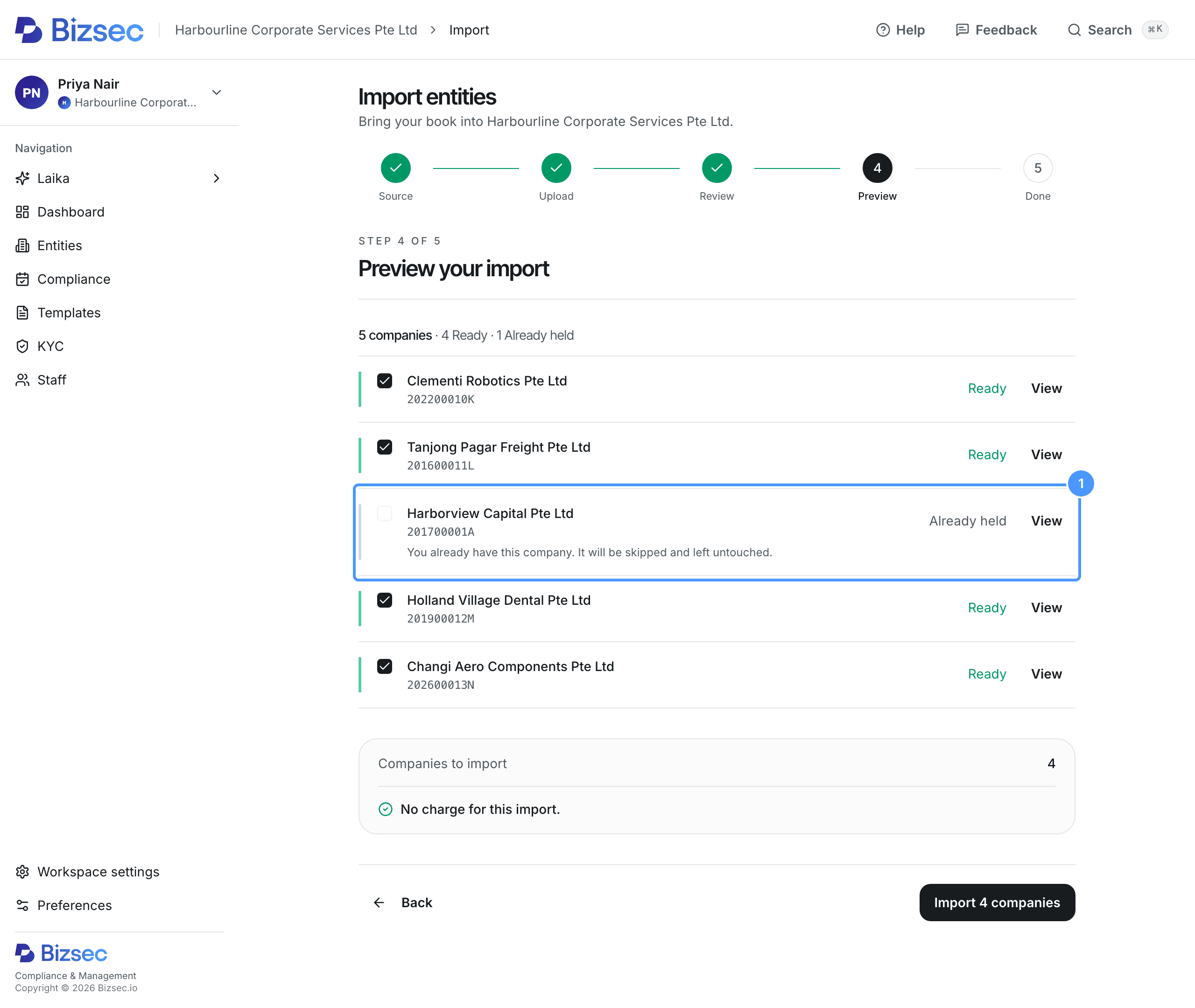
Check the status of each company:
- Ready will be imported.
- Already held is already in Bizsec, or appears earlier in the same file. It is skipped.
- Needs review has a name or UEN Bizsec could not read. Choose Review, correct it, and choose Save and continue.
- Claimed elsewhere has a UEN another firm on Bizsec holds. See It says this UEN already exists.
Rows with no company name or UEN are listed above the companies and are not imported.
To leave a company out, untick it.
Check flagged cells
Choose View on a company to see everything Bizsec read for it. A flagged cell shows the original value struck through, with the reason. It imports blank. See Some cells came in blank with a flag.
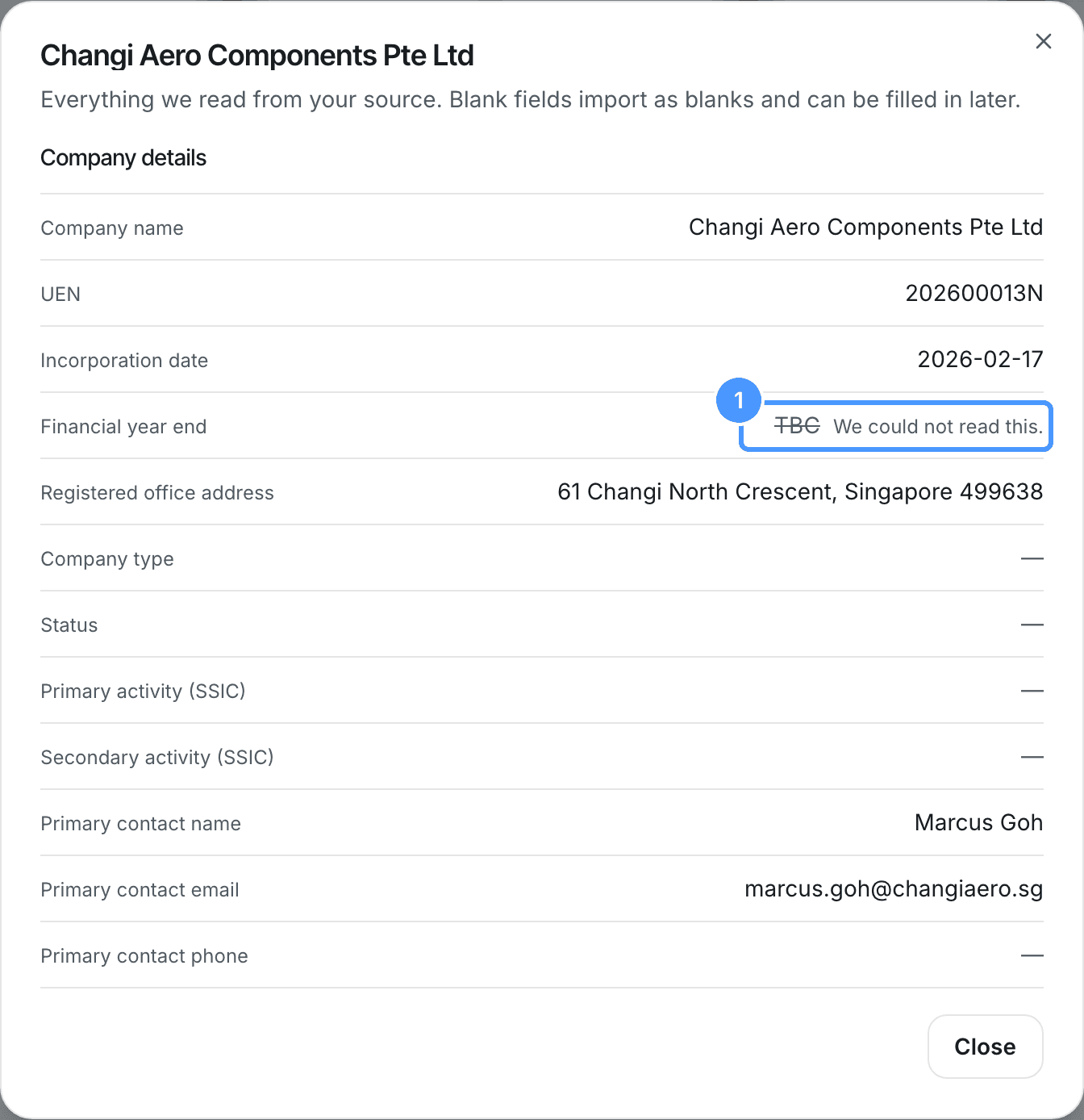
Fill in a blank financial year end after the import. Bizsec needs it to set the company's Annual Return and AGM deadlines.
Choose Close, then choose the Import button. It shows the number of companies ticked.
Check the results
Each company shows what happened to it. Imported and flagged companies were imported with some fields blank. Open them from the Entities page and fill in the blanks.
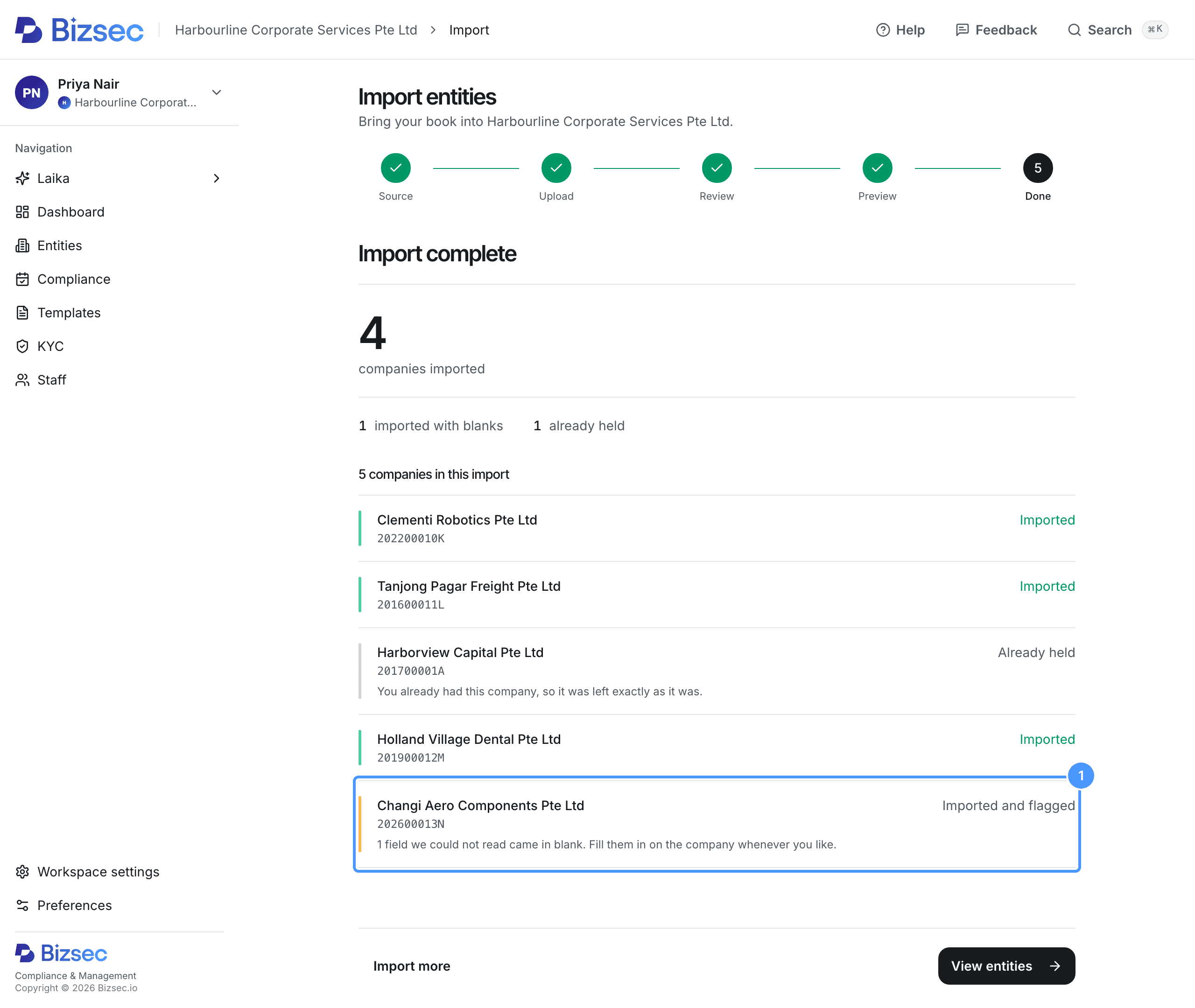
Choose View entities to see your companies.
If you leave before you finish, see I closed the tab mid-import, have I lost it?
How is this guide?